2.Sub-device upgrade
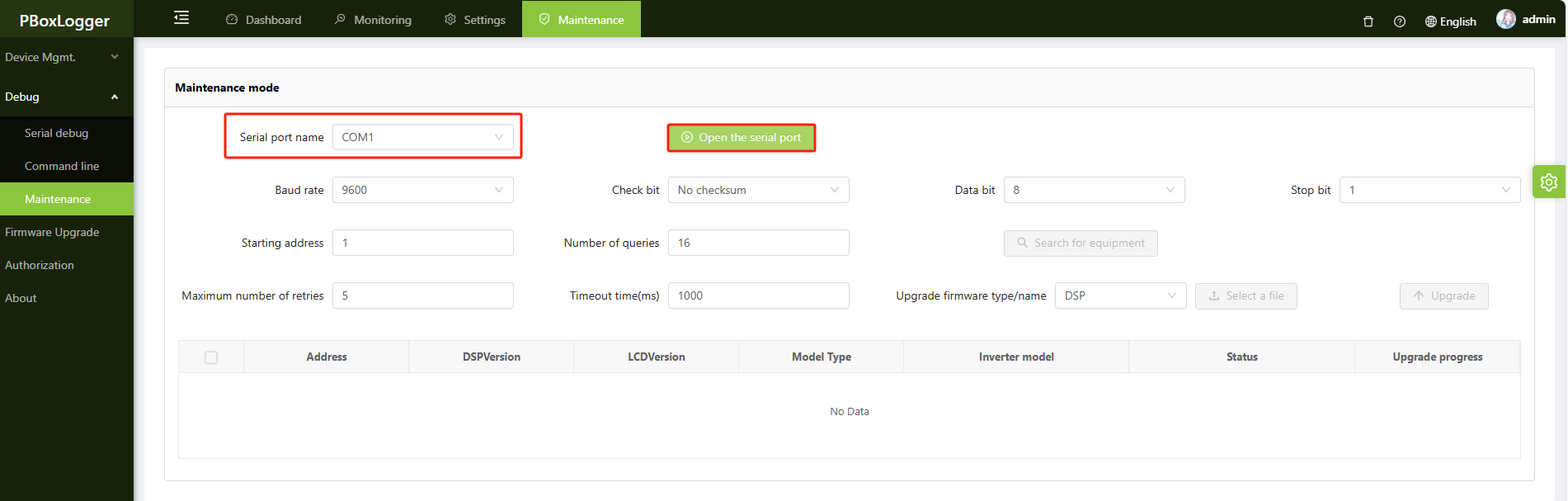
Open the serial port
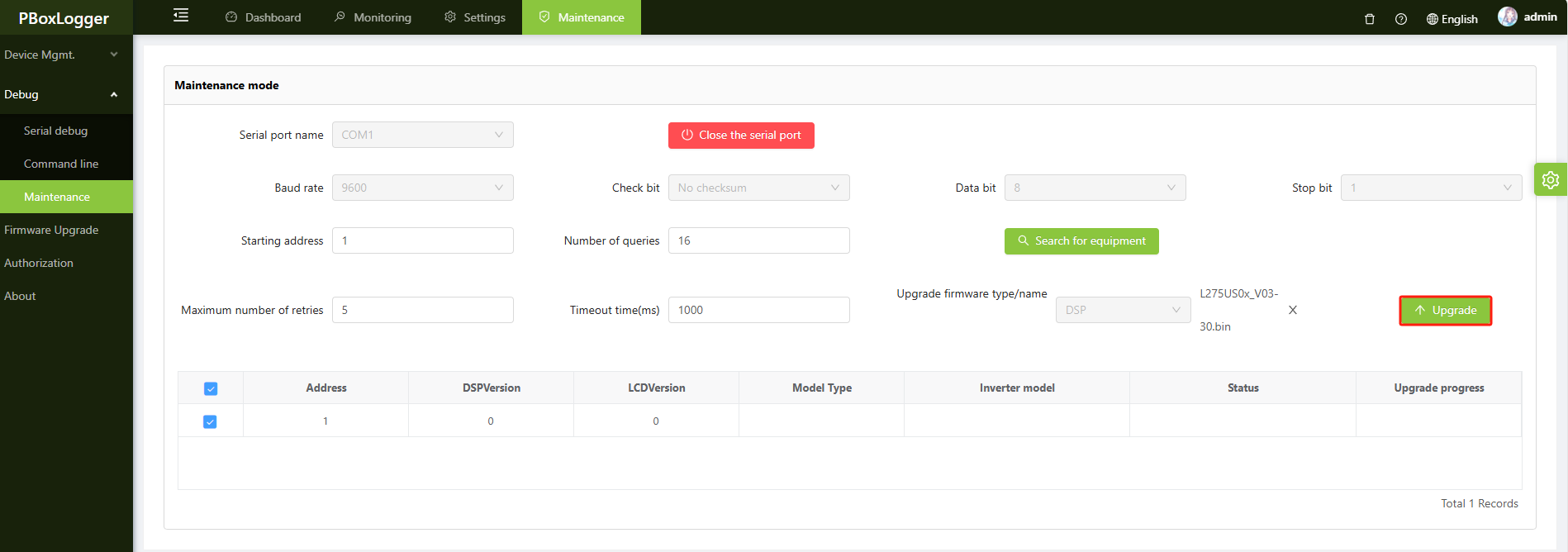
First select the serial port to be debugged and configure the correct parameters of the serial port, then click the Open the serial port button to open the serial port.
Look out
Opening a serial port temporarily suspends the business communication of that port, please ensure that there is no impact on the business before operation.
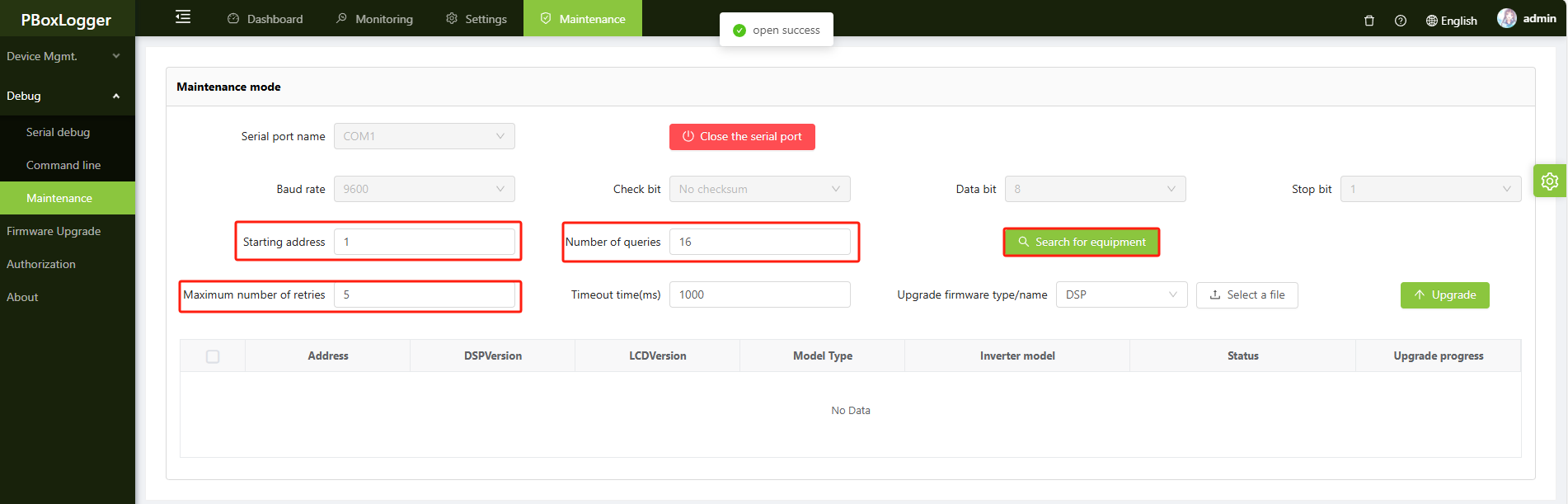
Search for equipment
First, configure the query parameters, select the Search for equipment command, and wait for a moment to search for the relevant devices.
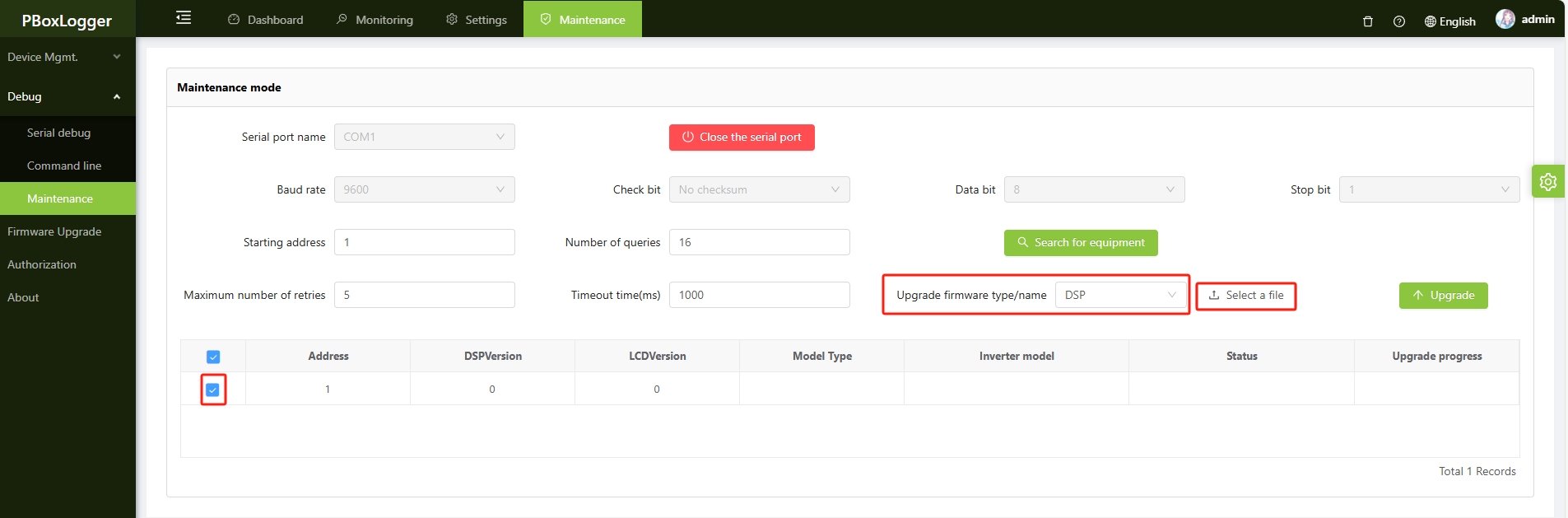
Download Firmware
After the execution of the command to open the serial port, tick the device you want to download the firmware, select the type/name of the firmware to be downloaded, select the Select a file command, and then the pop-up window will appear to select the corresponding firmware, and then you can execute the firmware download operation.
Sub-equipment upgrades
After performing all the above operations, select the Upgrade command, at which time the upgrade operation will be performed.
Look up
Do not redirect the current page during the upgrade operation. If necessary, you can create a new tab to log in to the web version of the system, but also do not operate the already open serial port.
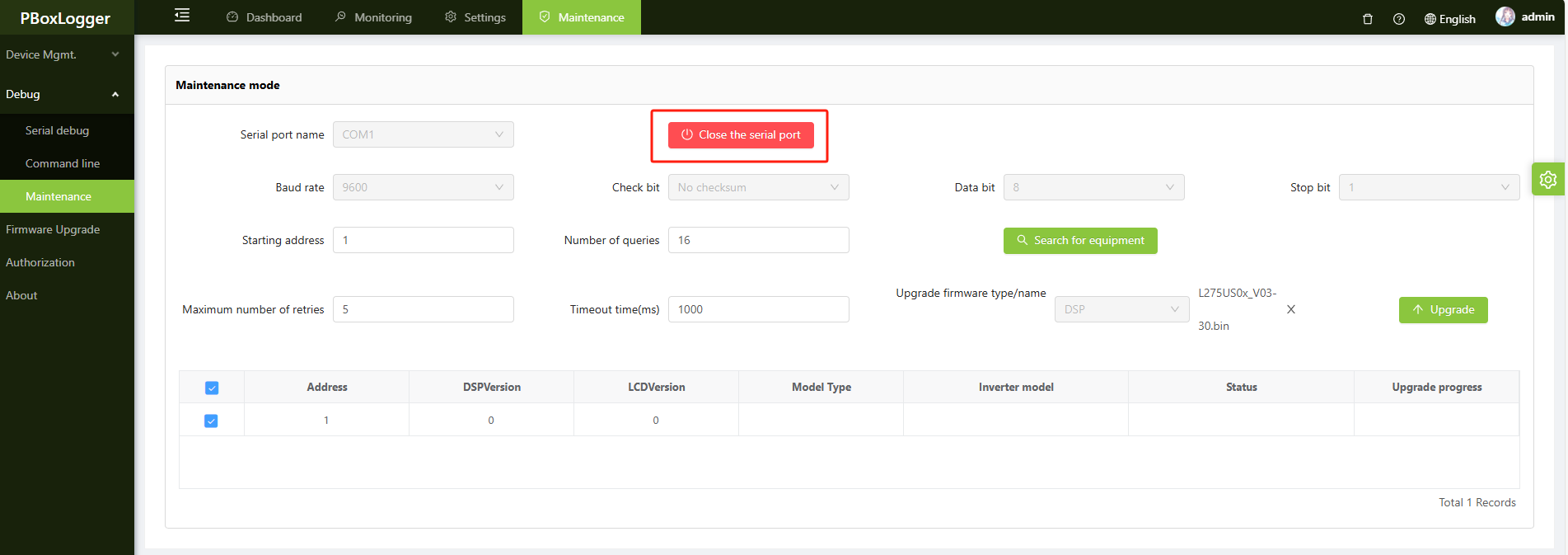
Close the serial port
After making sure that the upgrade of the sub-device is complete and there are no other operations, select the Close the serial port command to close the serial port.
Look up
Please remember to execute the command to close the serial port at the end, otherwise it will affect the normal business operation.