3.Monitor Data
1.View overview data
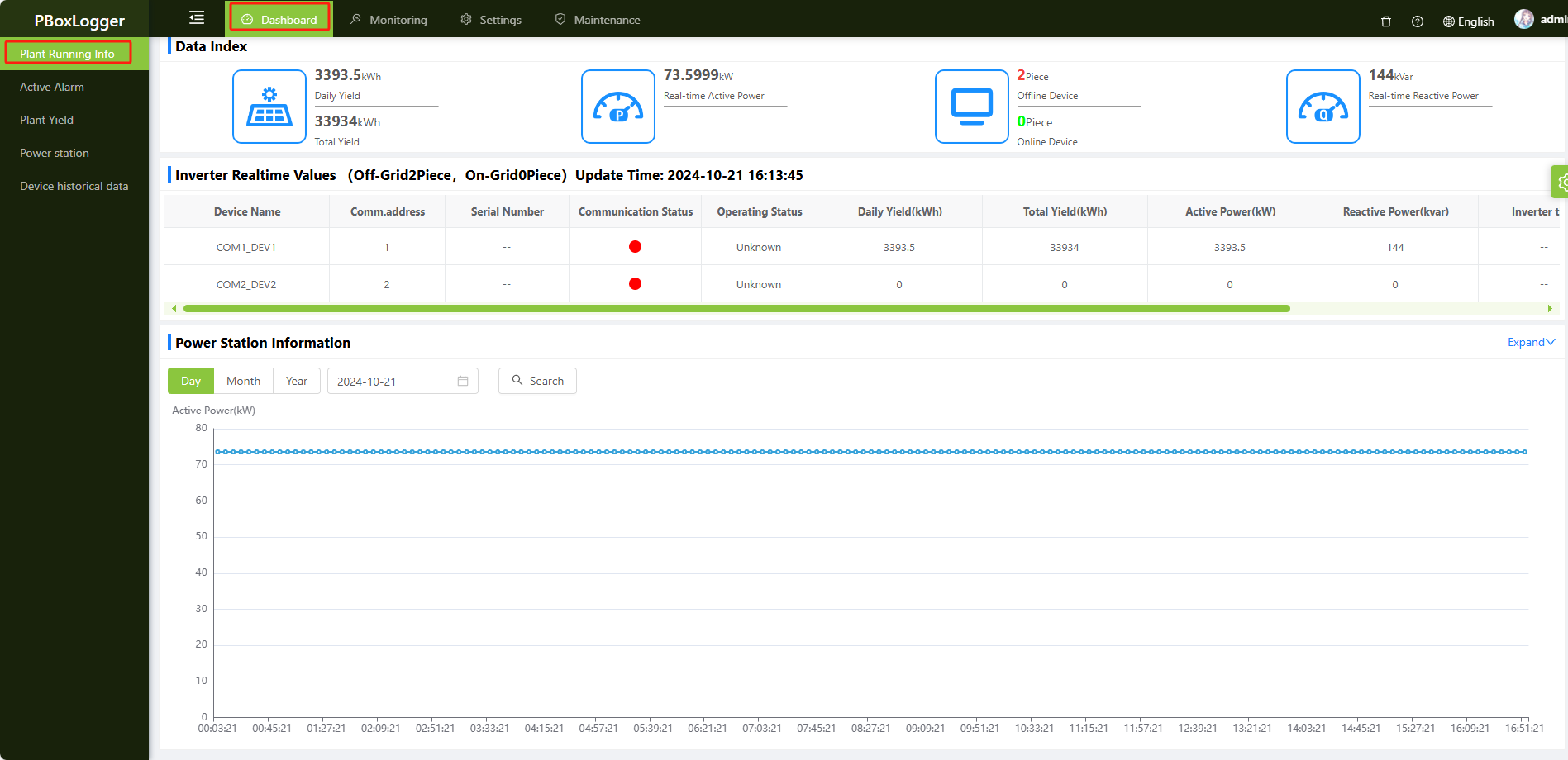
View inverter operating data
On the top menu bar, click Overview -> Power Station Operation Information to view the overview data, which contains power station summary data and a list of key data for each inverter,
View Active Alarm data
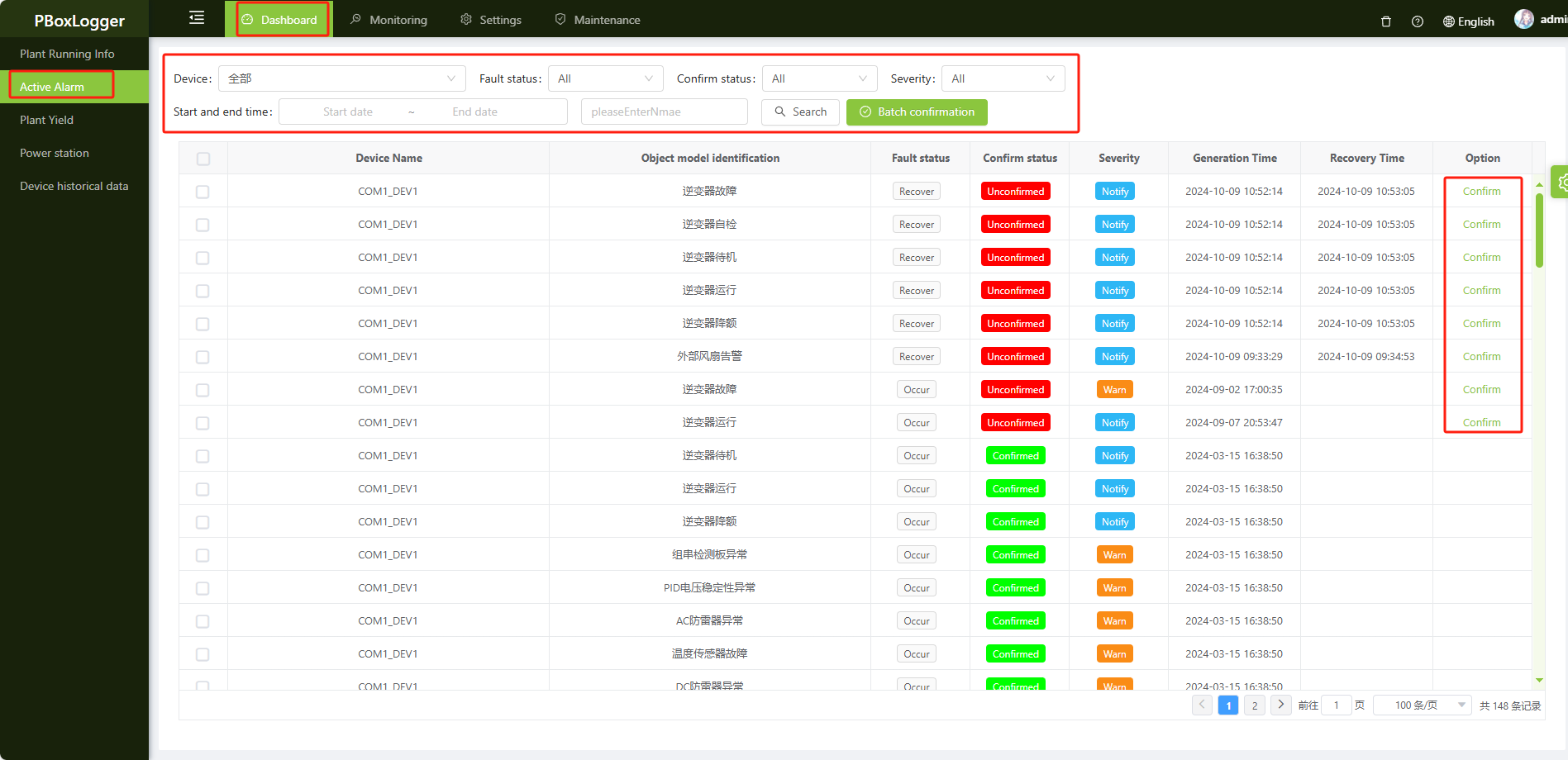
In the top menu bar, click Overview->Active Alarms to view the active alarm data, which contains a variety of Alarm data for each device, we can filter the query based on device, fault status, confirm status, Severity, start and end time, object model identification, and we can check the Alarm data one by one as well as batch confirmation. Alarm data can be confirmed one by one and in batch.
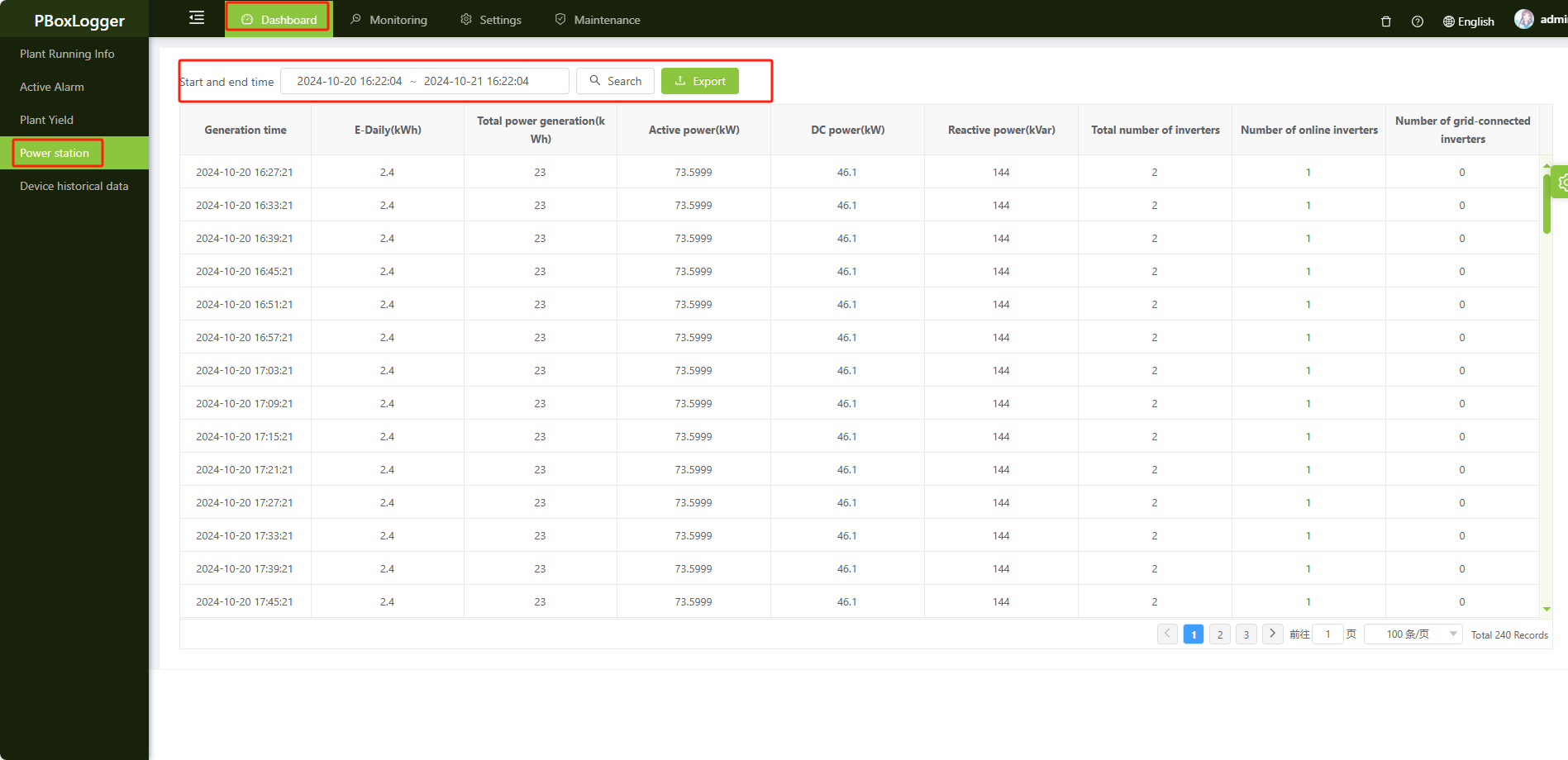
View Power staion
Top menu bar, click Overview->Power Station Historical Data to view power station historical data, which contains Power Station Historical Summary Data, we can filter the query according to Start and End Time.
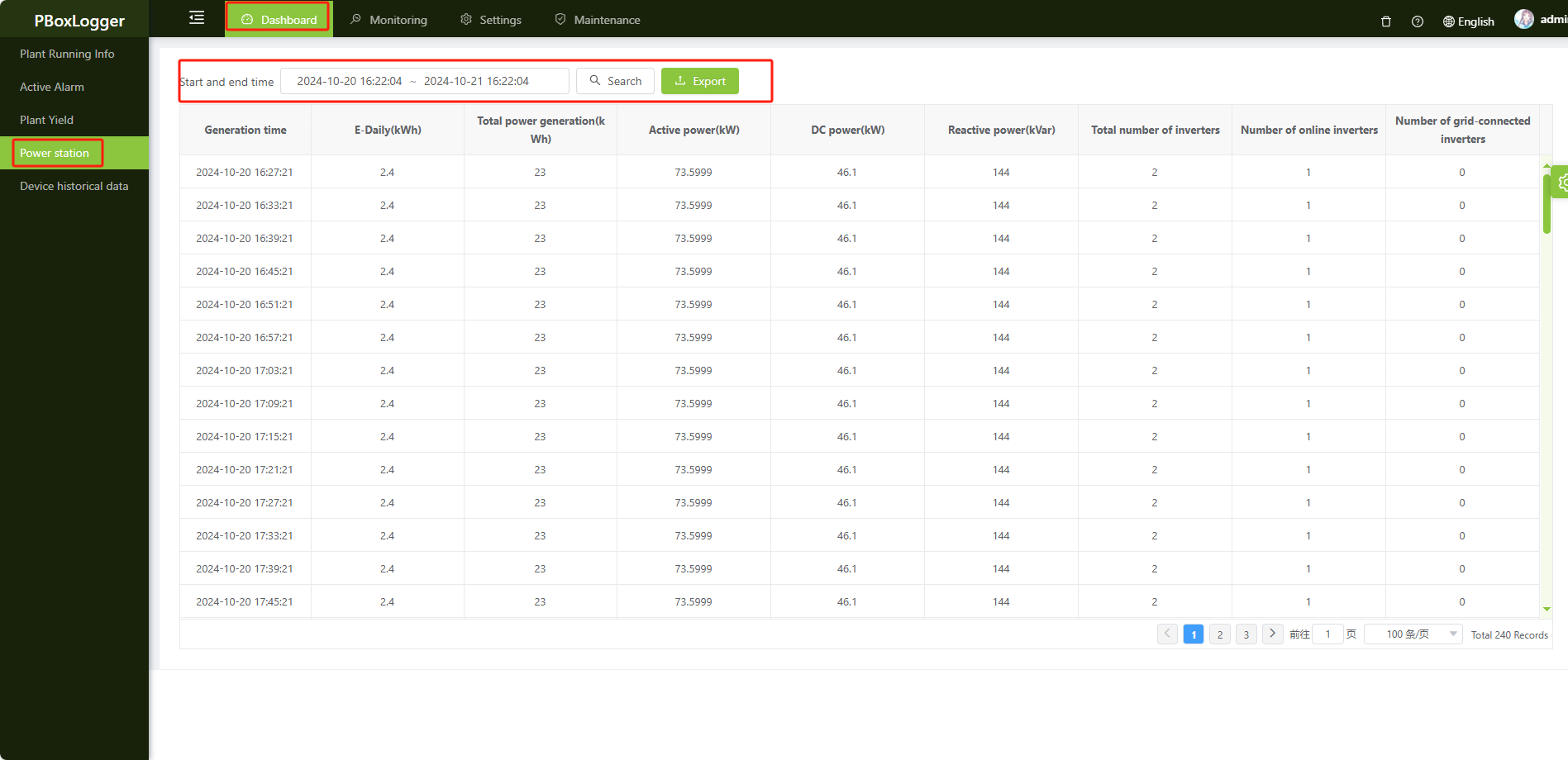
View Device historical data
Top menu bar, click Overview->Device Historical Data to view the device historical data, which contains each Device Historical Summary Data, we can filter the query based on Device, Start and End Time.
2.View live data
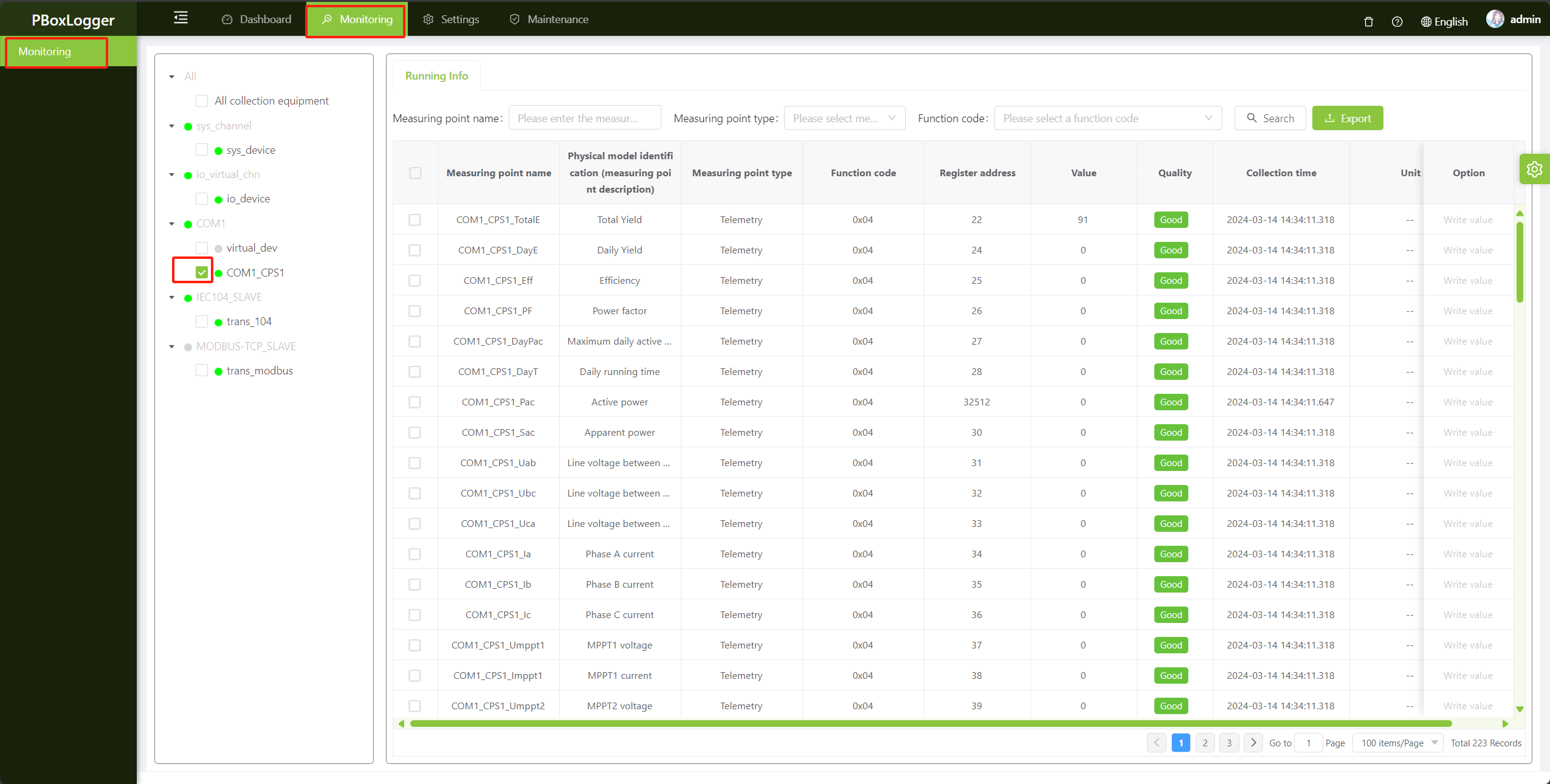
On the top menu bar, click Monitoring -> Device Monitoring to view detailed real-time data;
You can select a target device in the left tree to view the real-time data of a device。
3.View channel monitoring
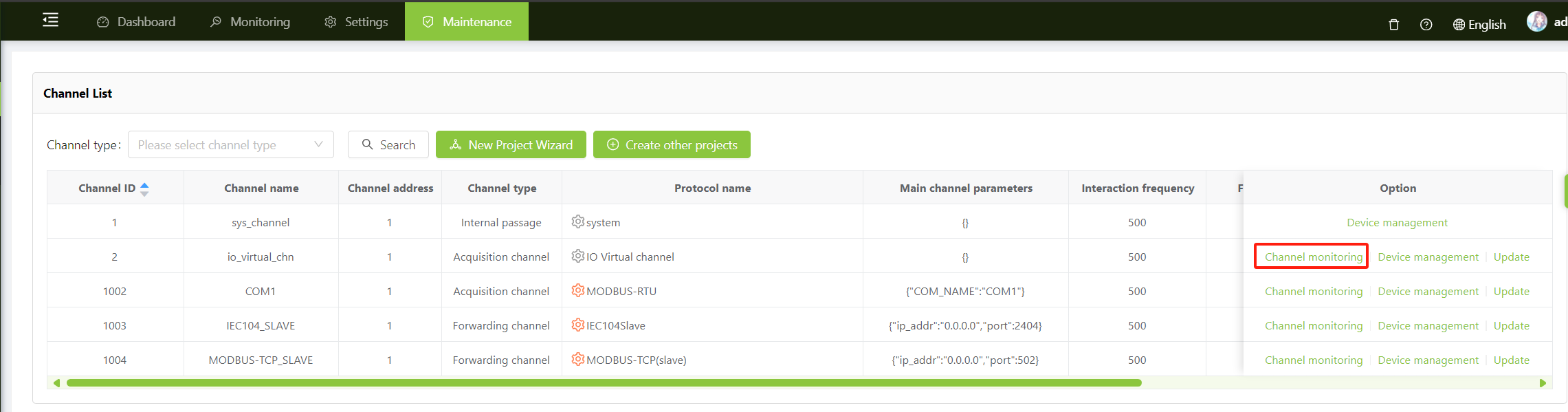
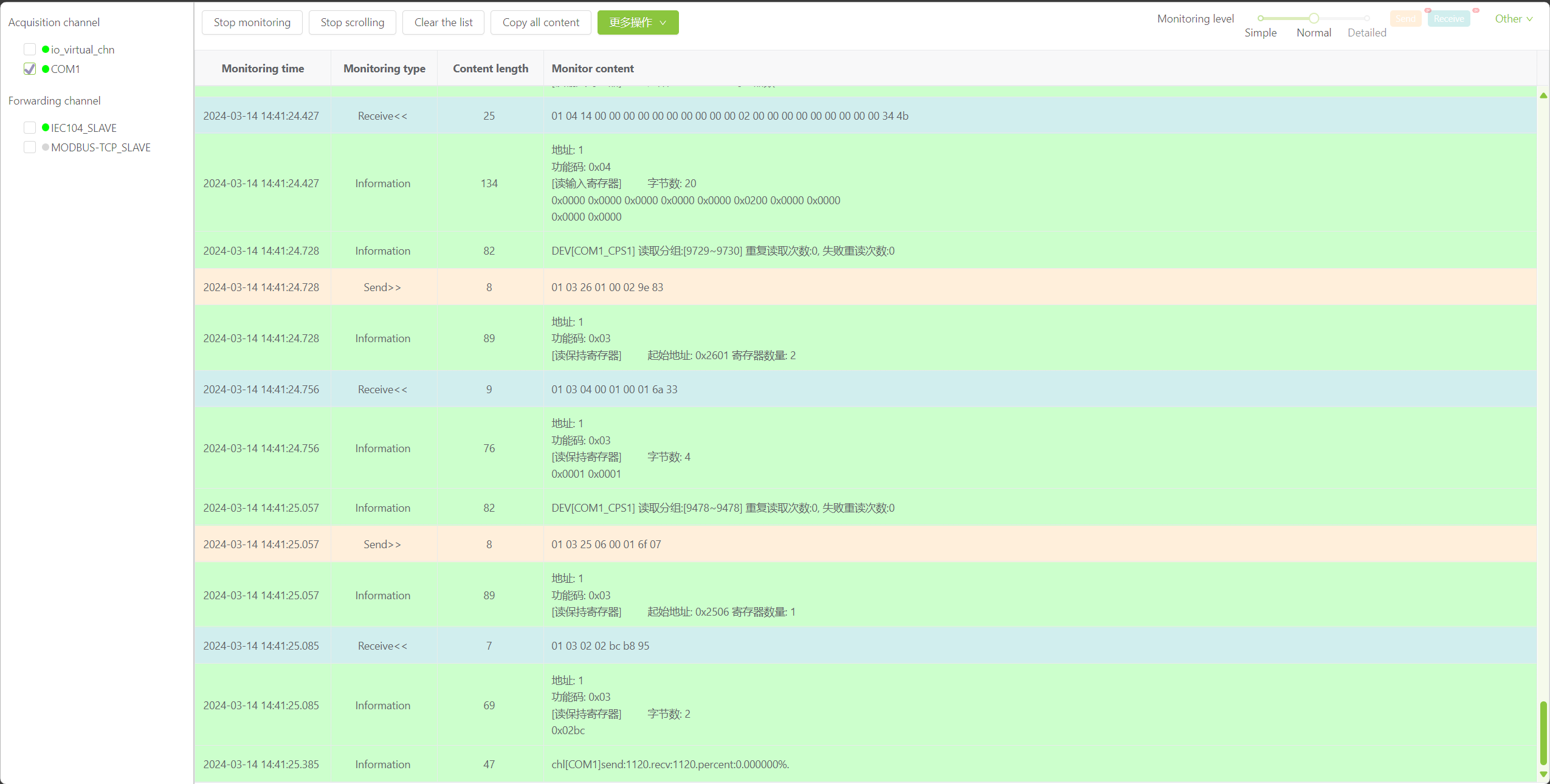
Click Maintenance on the top menu bar, and click the Channel Monitor button on the right of the target channel in the channel list to view real-time communication messages in the pop-up TAB。